Why Emails Get Clipped in Gmail, Outlook, and Other Email Clients and How to Prevent It
 Pablo Díaz · 15 May, 2026 · Email Marketing · 3 min
If you often receive newsletters or email campaigns, you may have seen a notice in Gmail at some point that says something like “Message clipped. View entire message”.
Like this:
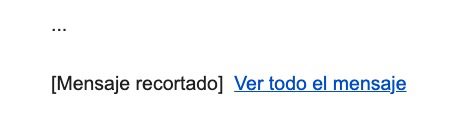
This notice appears when the email client decides to hide part of the email content because its HTML code exceeds certain technical limits.
In Gmail, that limit is approximately 102 KB. When exceeded, the system only shows the first part of the message and hides the rest behind a link that many users simply do not click.
Today we will understand why this happens and how we can prevent it so that our email marketing campaigns are effective, as well as the experience with our subscribers.
What are the consequences of clipping in your campaigns?
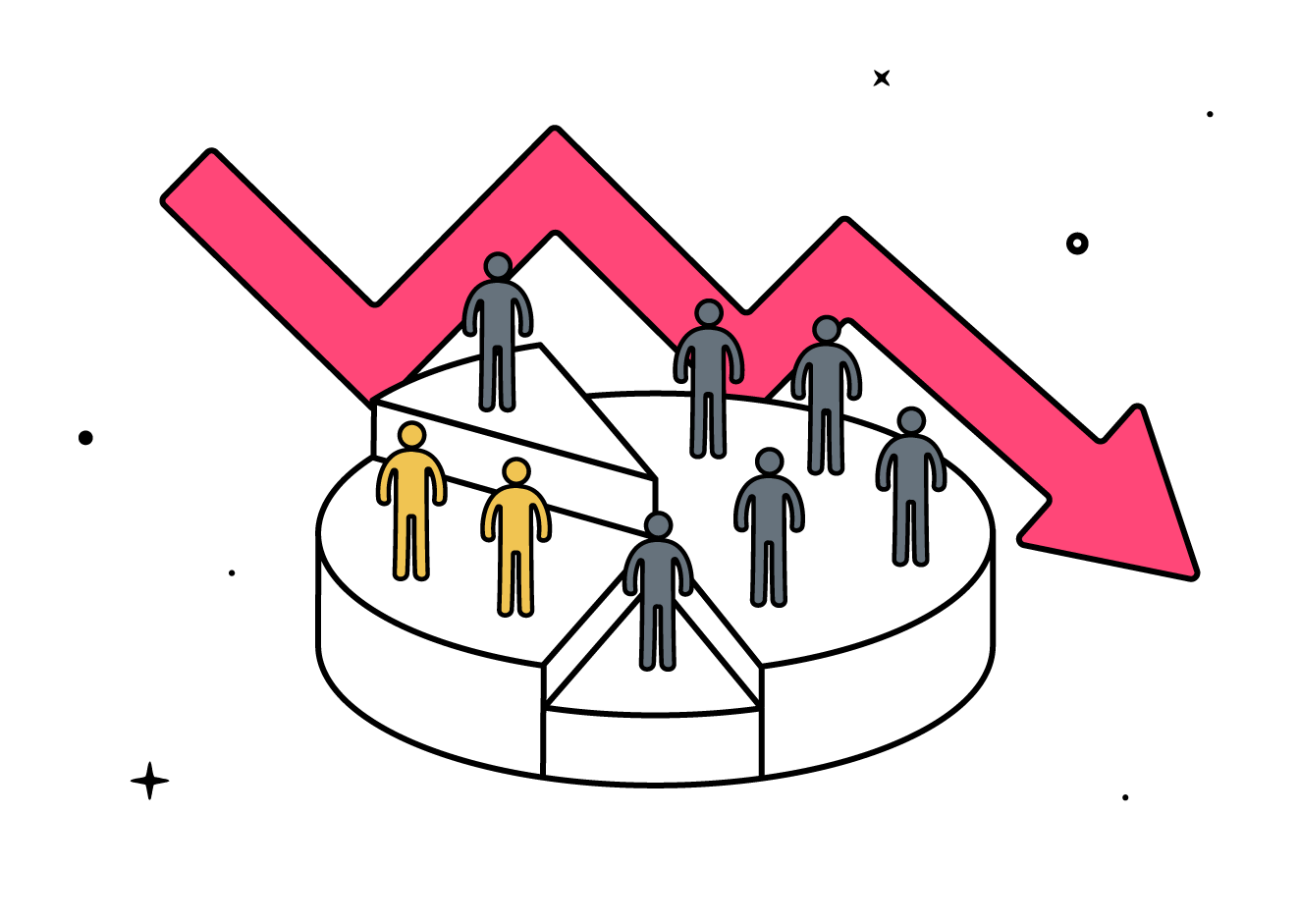
When an email is clipped, the reader does not see the full content of the message. And this has a direct impact on the campaign’s performance.
If the main CTA appears in the clipped part, the reader will never see it. The same can happen with the unsubscribe link, which usually goes at the end of the email. And if the tracking pixel is also hidden, the opening may not be recorded correctly.
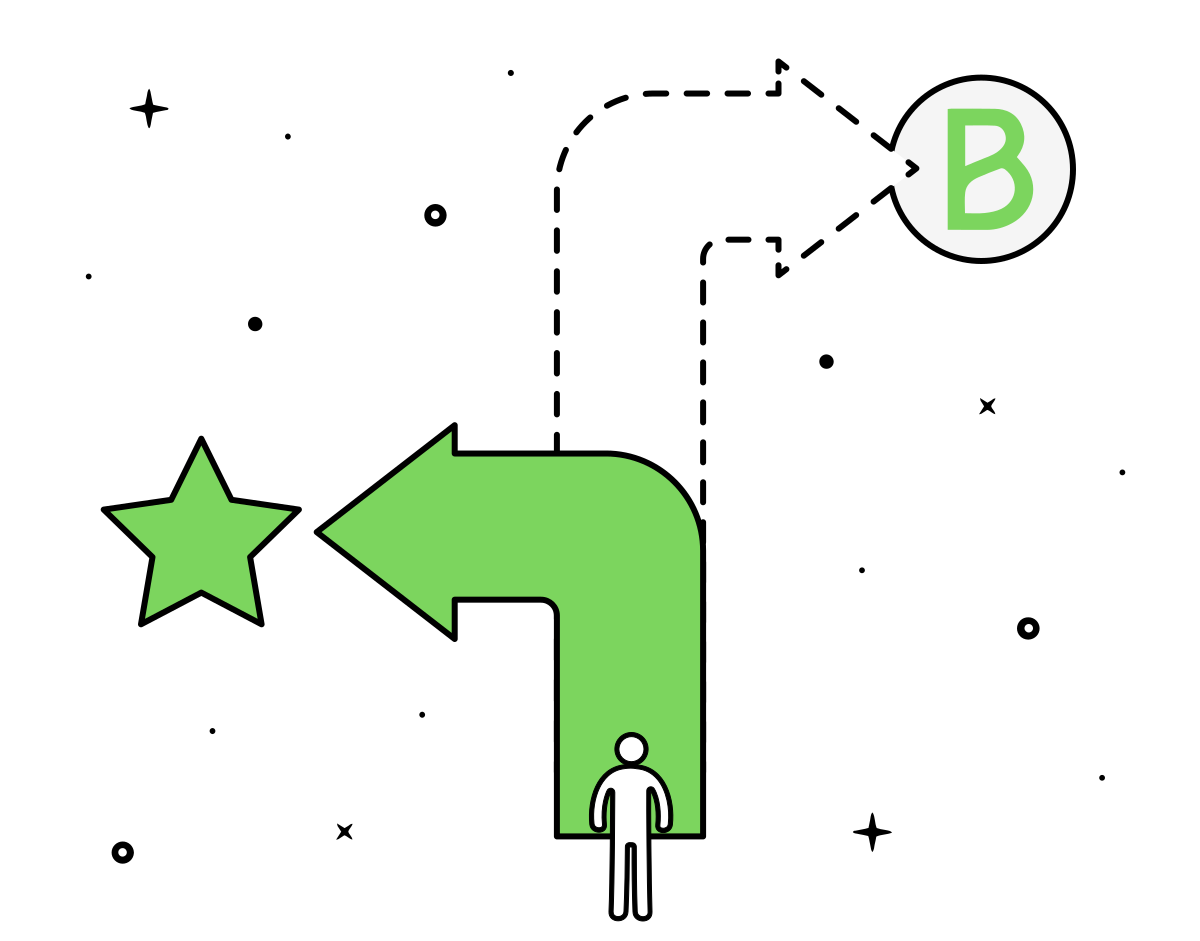
That’s why it’s advisable to place the most important elements, especially the main CTA, in the first part of the message. This way, even if the email is clipped, the essentials remain visible.
Why does clipping occur?
Gmail’s limit does not consider the weight of images or attachments. What it evaluates is the size of the message’s HTML code: text, links, tags, CSS styles, and tracking code.
This explains why an email with little visible text can exceed the limit if it has a very loaded template, and why others with quite a bit of content stay below if they are well optimized.
The most common causes are:
- Templates with complex HTML generated by email marketing tools
- Redundant or duplicated CSS code
- Reusing templates to which blocks have been added without cleaning the previous ones
- Repeated sections or structures that have not been optimized
Other email clients manage this differently. Some show the full message even if it’s heavy; others apply their own limitations. Gmail is the most well-known case and the one that affects the most users.
How to detect if your email is at risk of being clipped?
The most obvious sign is Gmail’s own notice when you receive the message. But to detect it before sending the campaign, you have two options:
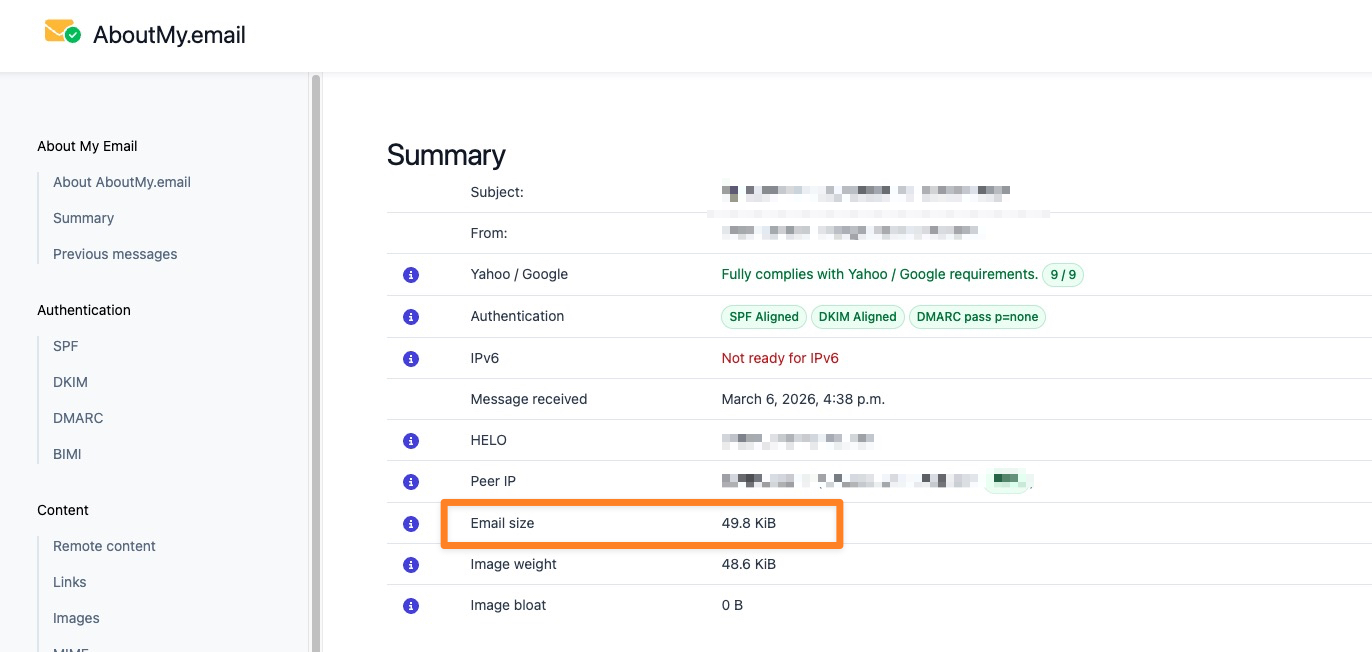
- The first is to use a testing tool like About My Email that analyzes the weight of the message’s HTML from a test send.
- The second is to do it manually
Send yourself the test email to a Gmail account, open the message, and access the “Show original” option.
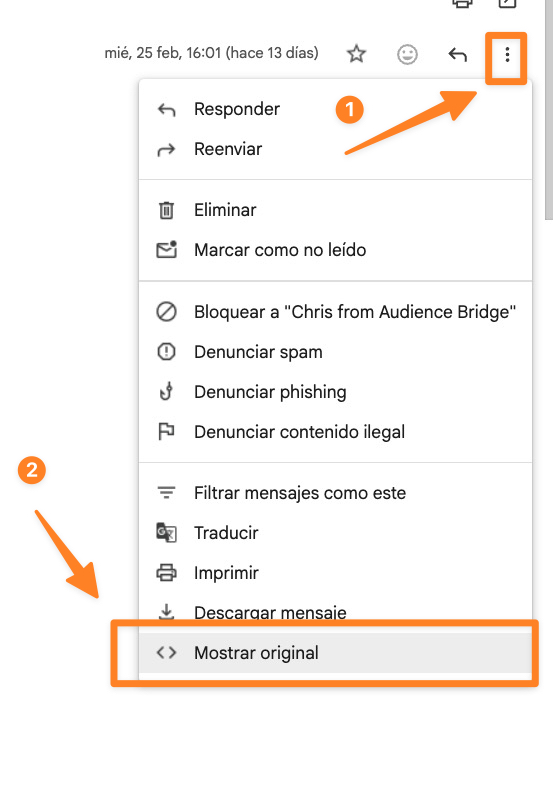
Once opened, download the original and on your computer check the weight by right-clicking > more information to see the KB
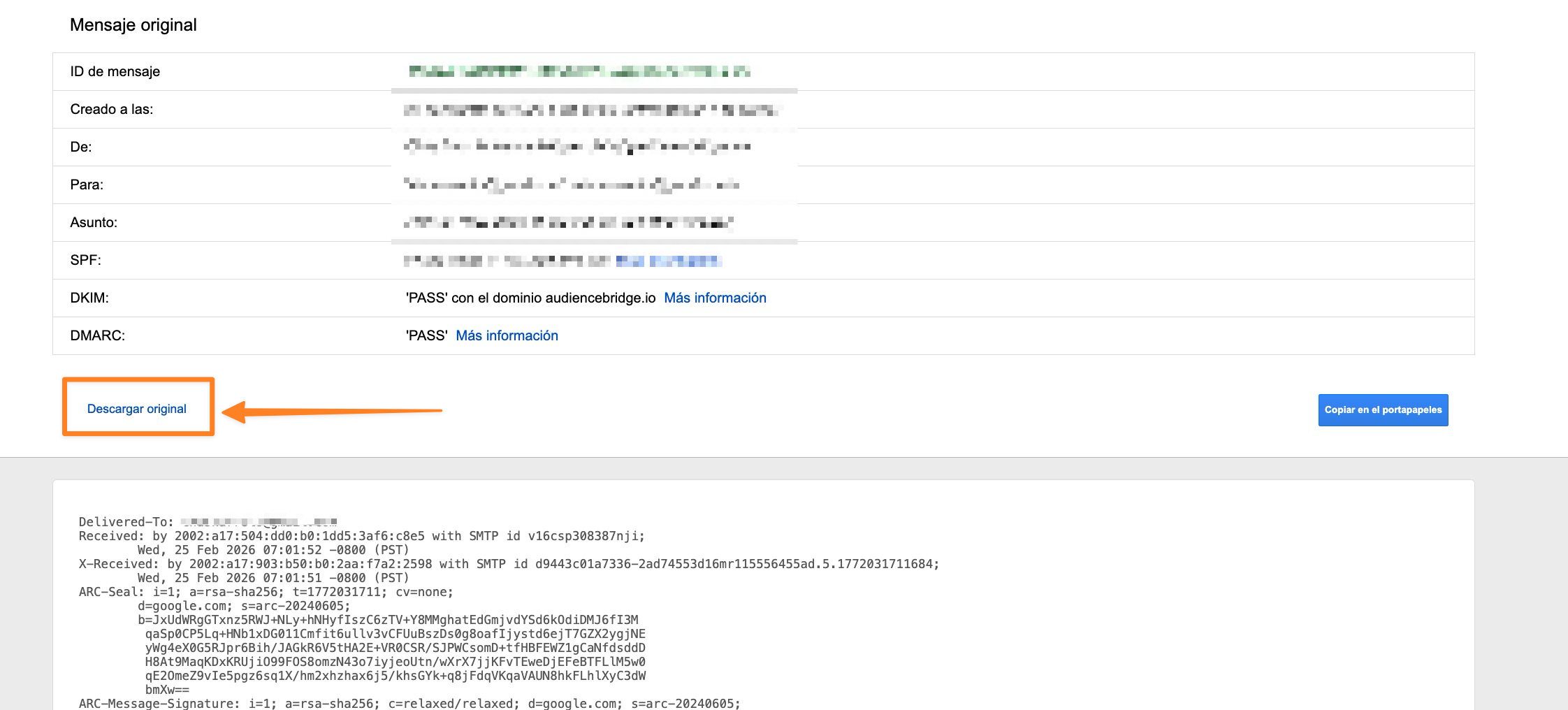
Once the file is downloaded, you can check its weight on your computer with right-click > more information.
If it exceeds or is close to 100 KB, the risk of clipping is high.
How to prevent your emails from being clipped?
The main solution is to keep the HTML code below 100 KB. To do this:
- Review and simplify your templates periodically, removing blocks and styles you don’t use.
- Avoid copying content from other editors without cleaning the code it drags.
- If you reuse templates, make sure to always start from a clean version.
These are simple adjustments that, applied regularly, ensure your emails are displayed completely and that no key element is hidden from your subscribers.