How to Send Mass Emails Through Gmail
 Pablo Díaz · 03 Aug, 2026 · Email marketing avanzado · 7 min
Gmail is one of the most popular email clients. It has a very high market share worldwide. Look, according to Litmus data, 29.67% of users use Gmail to send and receive their emails.
The high familiarity of users with its interface makes many wonder if there is a way to use Gmail as an email marketing tool, and send a large number of mass emails through Gmail to their subscriber lists.
This thought can cause many problems if your idea is to sell through email marketing campaigns.
The truth is that Gmail is not a service designed for this, but for more personal use. Therefore, sending mass emails can cause various problems, which we will discuss below.
However, don’t worry, because there are alternatives to send mass emails through Gmail effectively. And yes, we will talk about how you can do it in this article.
Why You Shouldn’t Send Newsletters from Gmail
The main problems you may encounter if you decide to send emails massively through Gmail are the following:
Daily Limit
Gmail sets a daily limit of 500 sends every 24 hours, which makes mass sending difficult if your subscriber list is somewhat large.
The only way to send more emails per day is by upgrading to a paid Google Workspace account. And even then, you only get a limit of 2,000 messages to 1,500 unique recipients per day.
If you use up your entire limit at once, you won’t be able to send or receive additional emails that arise during that day.
Low Deliverability and SPAM
Even if the allowed daily volume is enough for you, the truth is that if you use an email address ending in @gmail.com to send mass emails, most likely, the majority of emails will not reach the inbox of their recipients and will end up in spam.
Free email providers are designed for individual use, that is, those emails you send 1:1 to your clients or coworkers.
Therefore, when sending mass emails from Gmail, the sender is considered suspicious.
And this is important because Google will temporarily deactivate your account if your emails are marked as spam or if you have sent many messages that cannot be delivered to invalid email addresses.
Gmail’s stricter spam policy requires the reported spam rate to be less than 0.3%.
⚠️ Important. It is most advisable to use an email address associated with your domain name.
The deliverability of campaigns is one of the keys to the success of email marketing, so this inconvenience is one of the most important.
Statistics
Another issue, no less important, is that if you send emails through Gmail, you will not have statistics that indicate the results of your campaigns, making it impossible to know if they have met the desired objectives or not.
To achieve good performance with email marketing, it is essential to monitor the most important metrics.
Unsubscribe Link
You will also not be able to include an unsubscribe link in your emails.
This is important as it is a mandatory requirement according to the GDPR in your email marketing campaigns.
With all these problems, how can you send campaigns from Gmail?
A Reliable Alternative to Send Emails from Gmail: Gumbamail
There are various alternatives that you can install as an extension in the Google Chrome browser and that allow you to send mass emails without leaving the Gmail environment, but at the same time, solve the aforementioned problems.
These tools allow you to perform the functions of any other email marketing tool:
- Manage subscriber lists
- Personalize emails through email merge
- Customize templates
Although as a user you never leave the Gmail interface, by sending through the servers of these tools, the daily limit mentioned earlier will not affect you.
Additionally, they also offer comprehensive reports with the statistics of the sent campaigns or the behavior of your subscribers.
Some of the most popular email marketing extensions for Chrome are GMass, MailKing, Mailmeteor, or Gumbamail
Our favorite is Gumbamail, so I’m going to tell you step by step how you can send a mass email campaign with this free extension.
How to Send Mass Emails with Gumbamail Step by Step
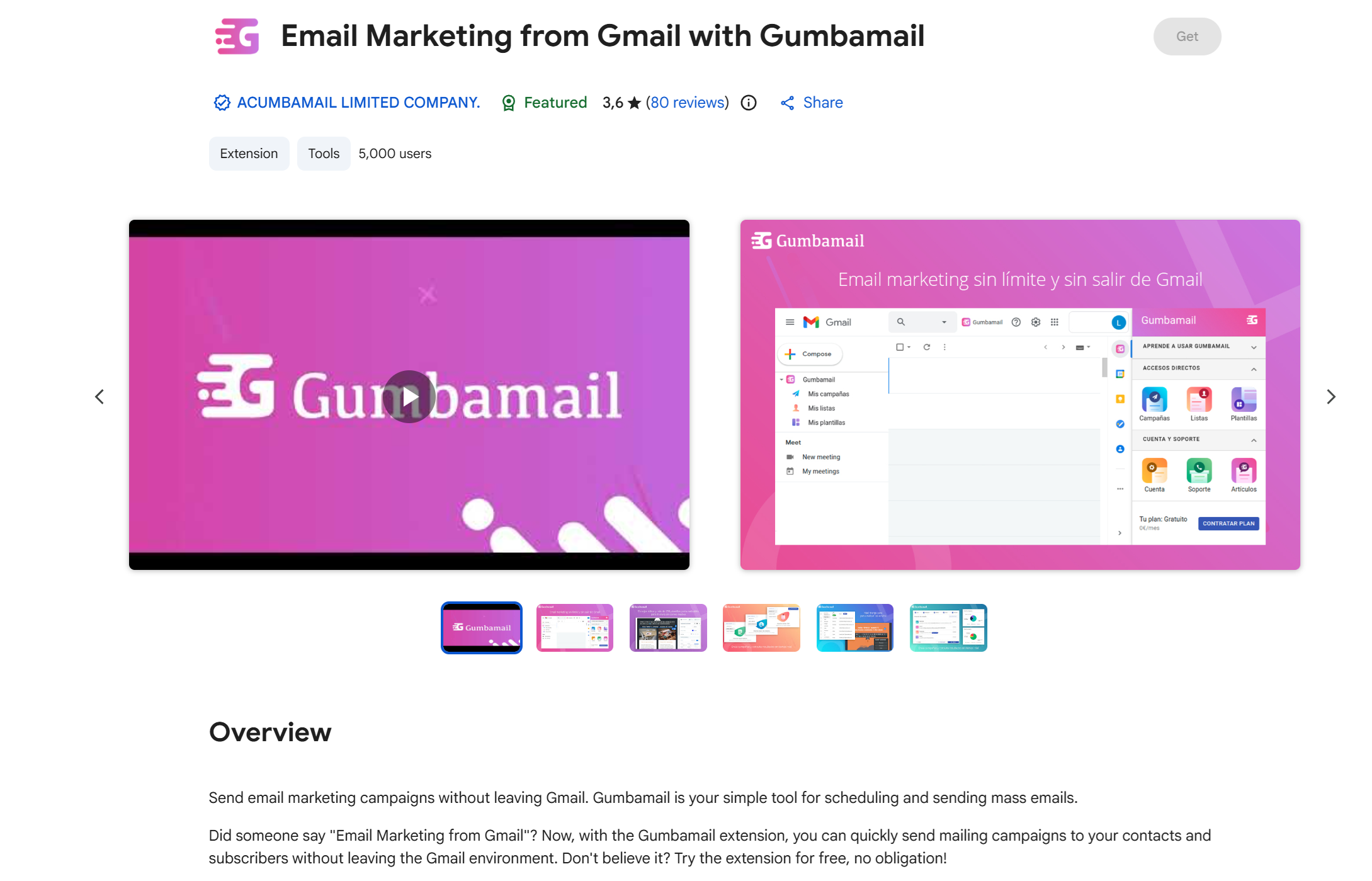
Step 1: Add the Gumbamail Extension to Your Gmail Account
From your Chrome browser, add the Gumbamail extension from here.
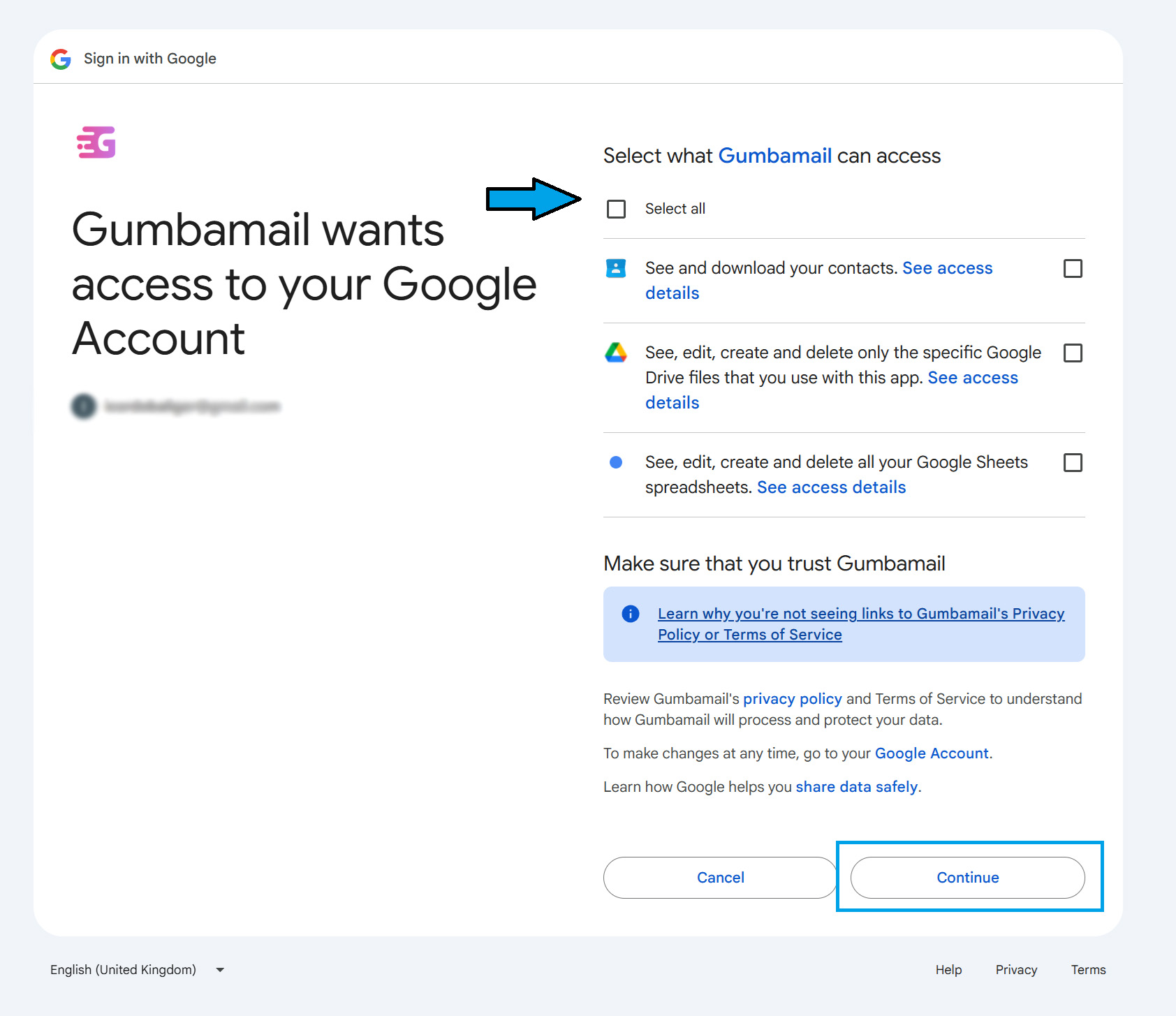
You must allow Gumbamail access to your Google account.
Once you have accepted all permissions, you will see a screen like this within your Gmail.
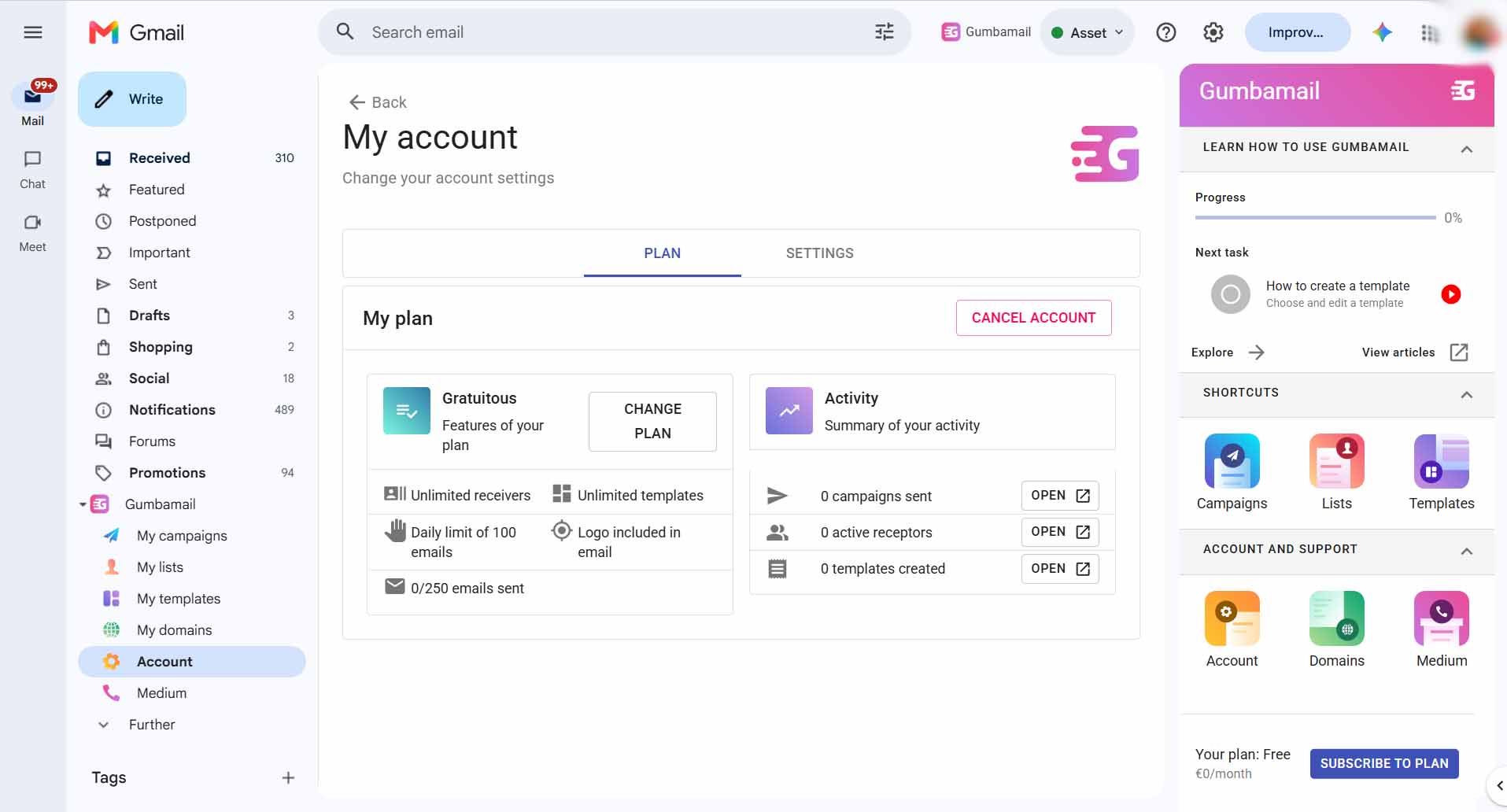
It is very easy to use. In fact, if you look at the right sidebar, they themselves propose a usage guide to start configuring everything.
Step 2: Add a Sending Domain
You must keep in mind that according to the new Gmail requirements to avoid ending up in the spam folder, it is essential that you send your campaigns from a corporate email.
That is, do not use a @gmail as you will end up in spam. Add your company or business domain.
You have two ways to access that menu: from the left sidebar or from the right as shown in the image.
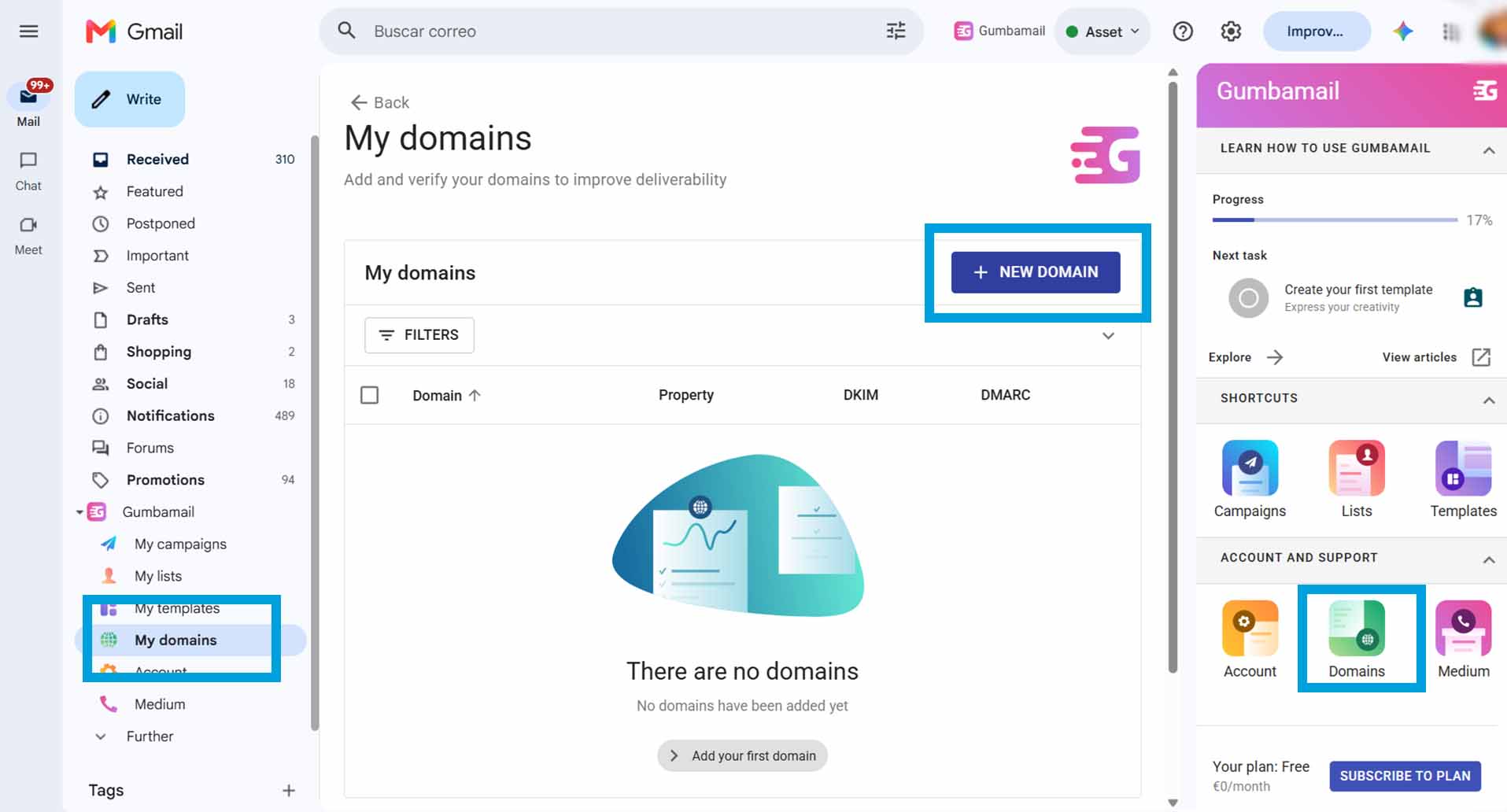
Once inside, click on “+ New Domain” and write it.
You will notice that you need to verify two things:
- That the domain is your property
- Configure the DKIM (we talk about it in detail here)
To avoid extending too much, I leave you linked the tutorial to verify both your domain and configure the DKIM.
Once you have completed this step, which is very important to improve your deliverability, we move on to create your contact list.
Step 3: Add Your Contact List
To create a contact list, you can access it in two ways from your Gmail panel.
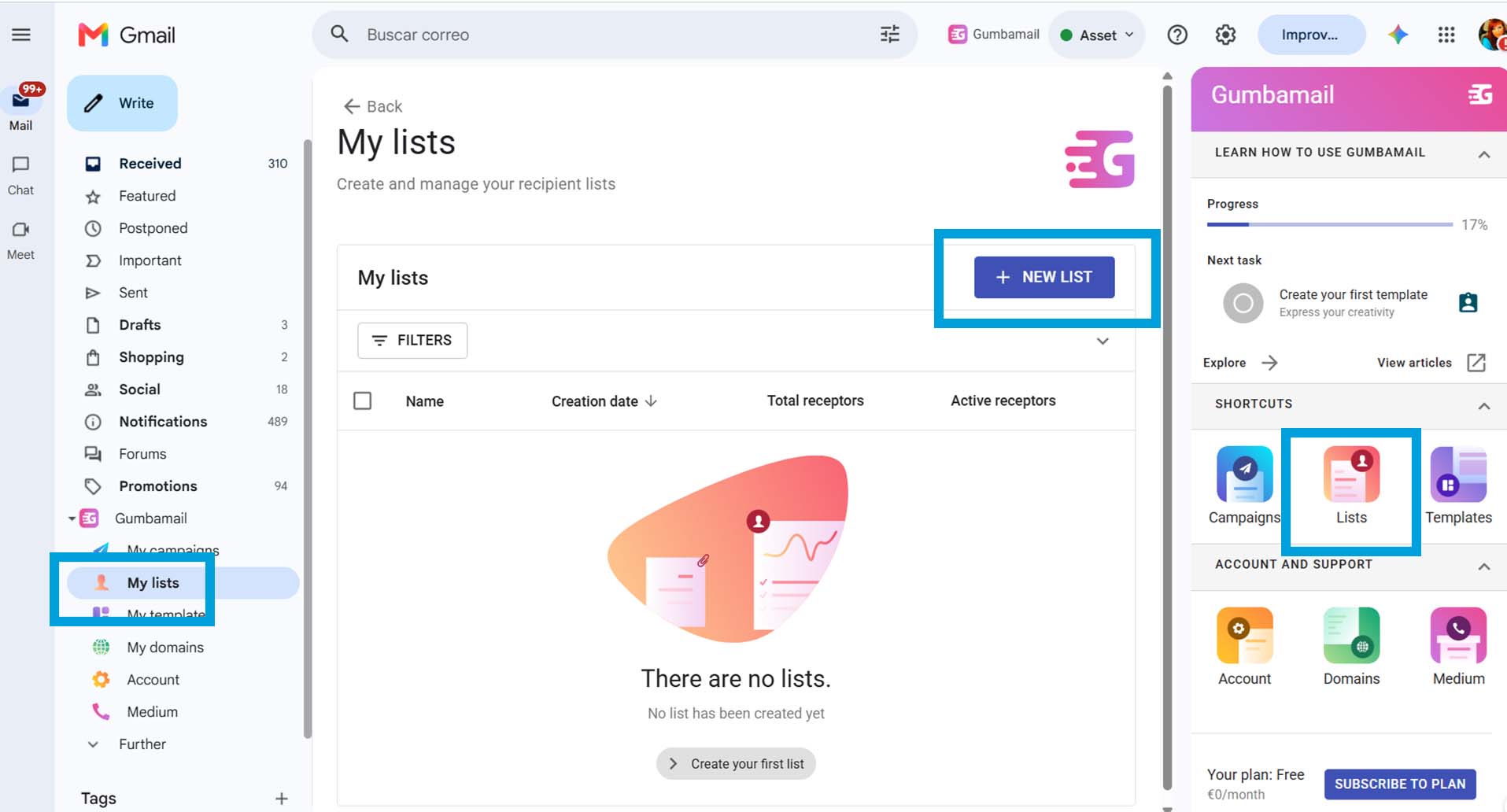
You will need to give it a name, and once done, it will have been created.
To add contacts, you have three import options:
- Through a CSV file
- Through Google Sheets
- Through Google Contacts
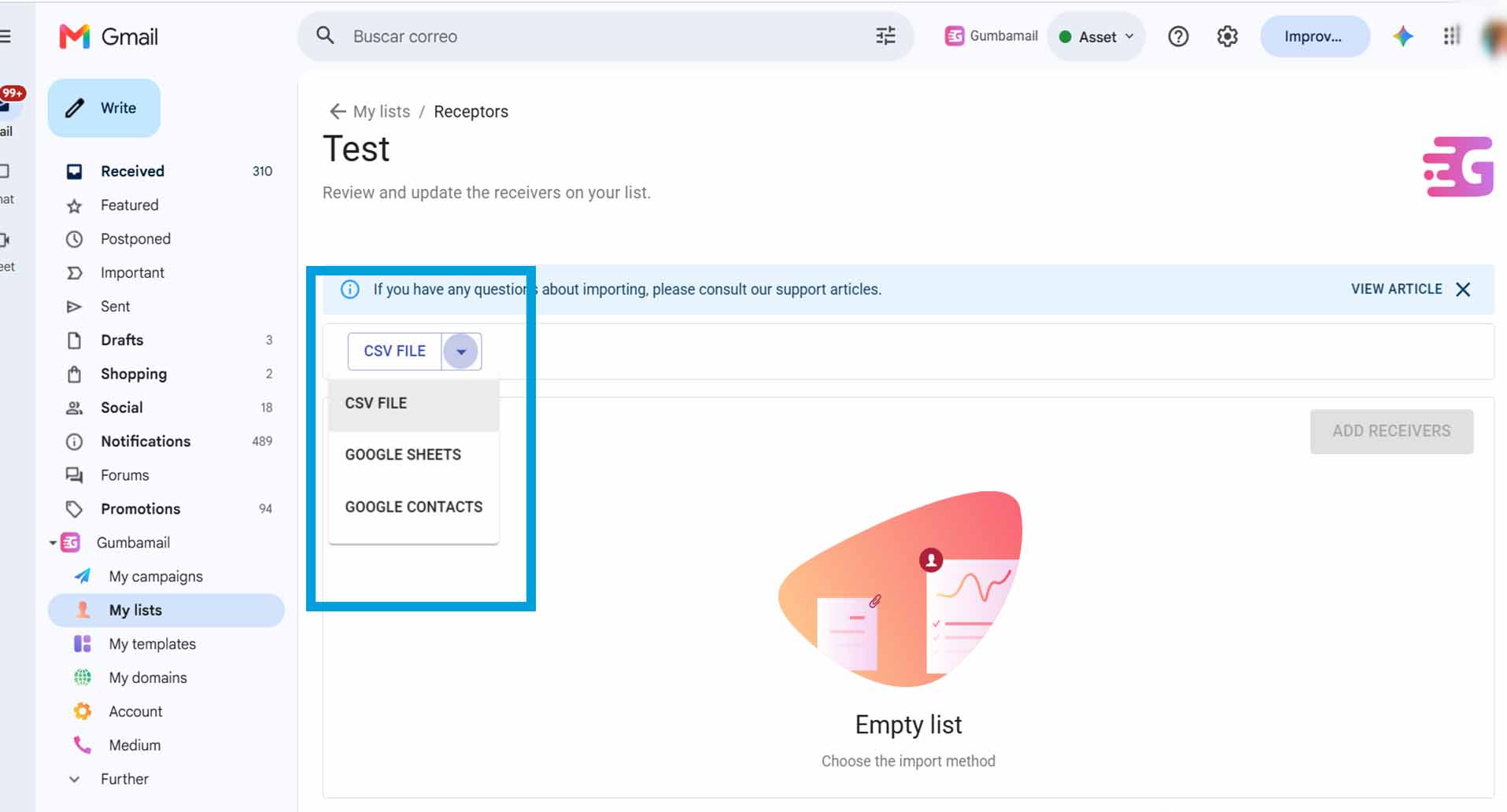
If you select through Google Sheets or Google Contacts, the integration is very well done and allows you to search right there for the sheet or contact group you have previously prepared.
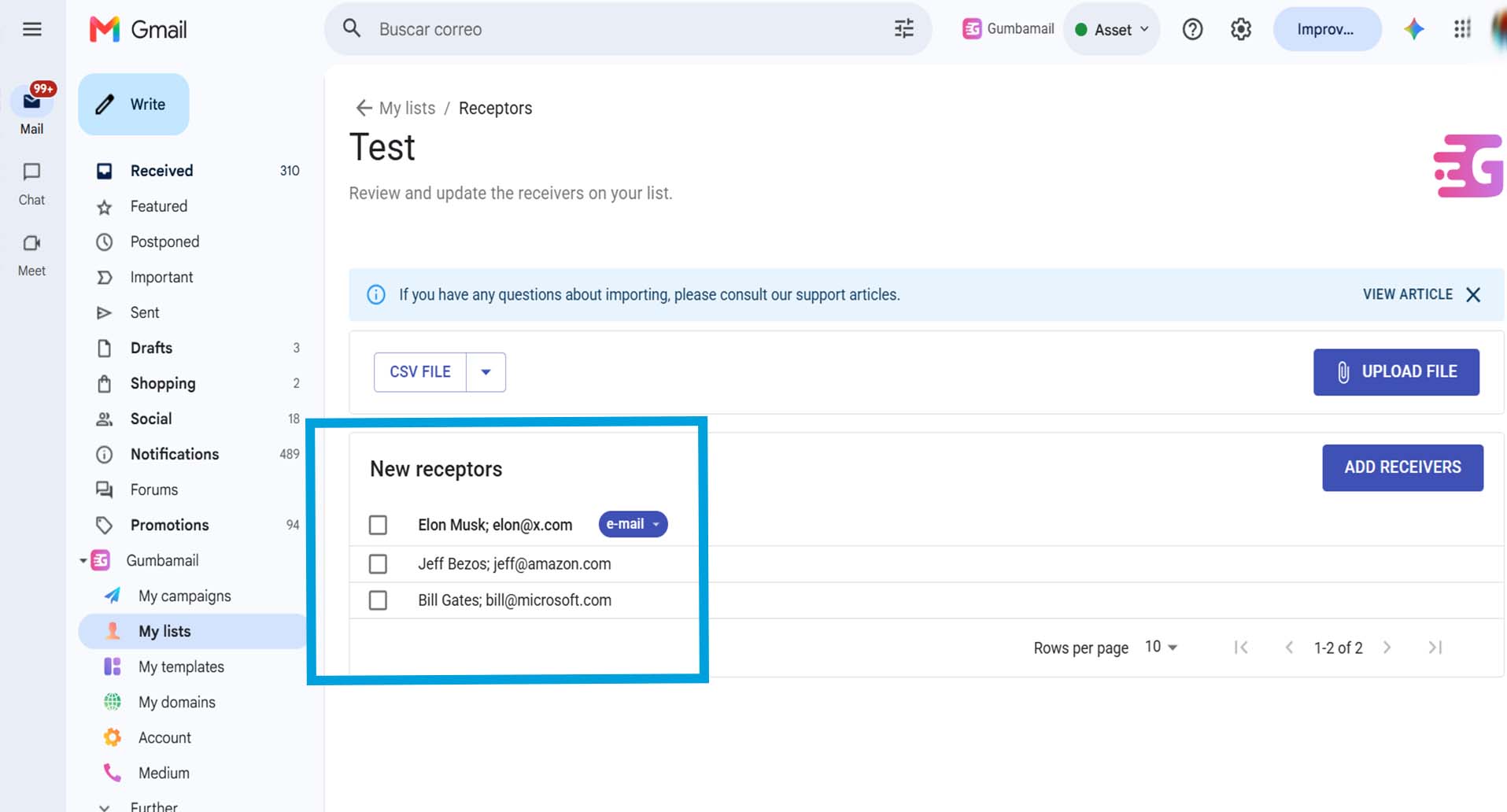
Once done, you can see the imported contacts and assign each column the field you want (if you have included more than just the email)
Step 4: Create a Campaign from Gmail
The next step is finally creating a mass email campaign.
You will see how easy it is.
Again, you can access that menu from both sidebars.
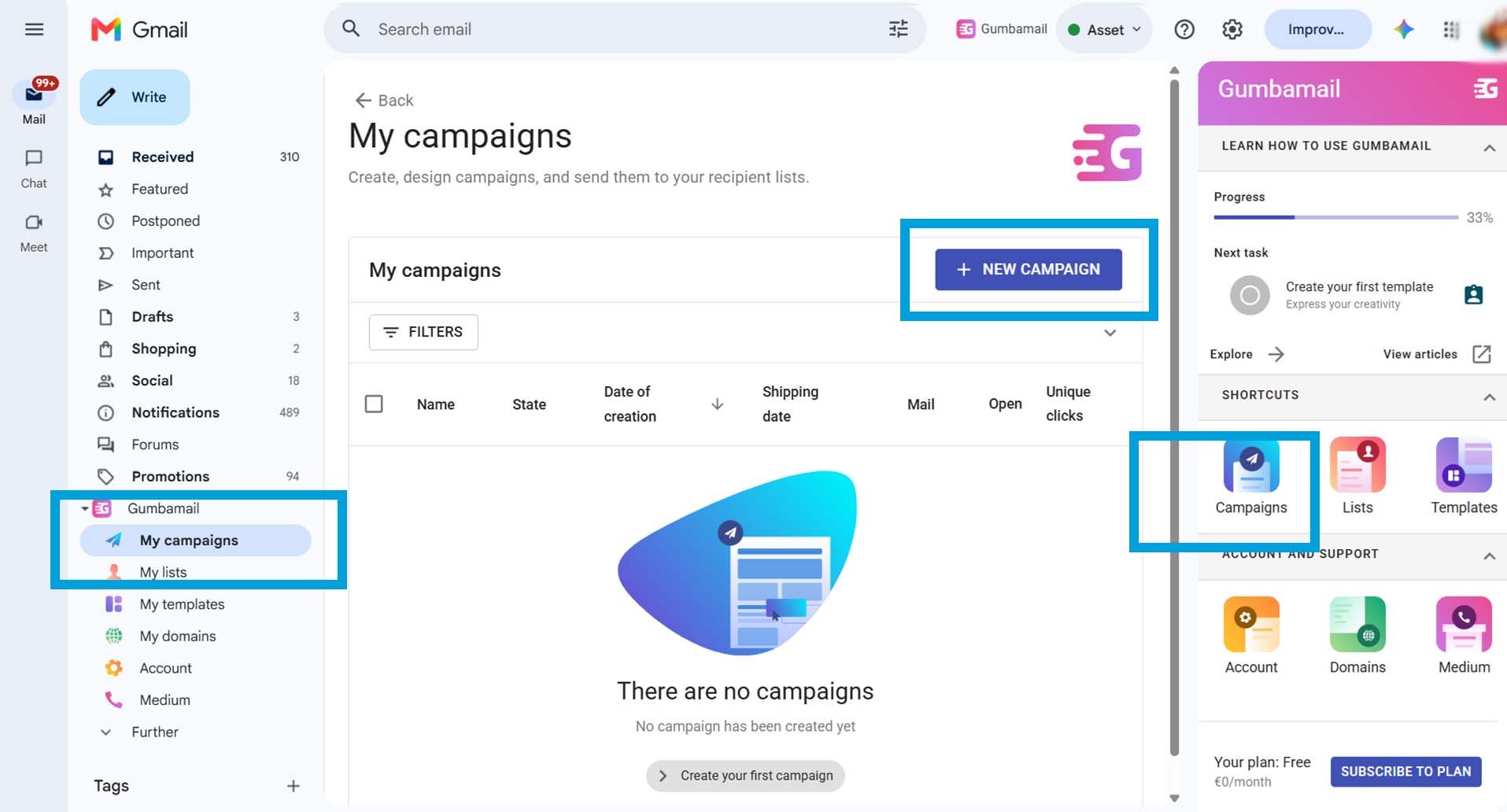
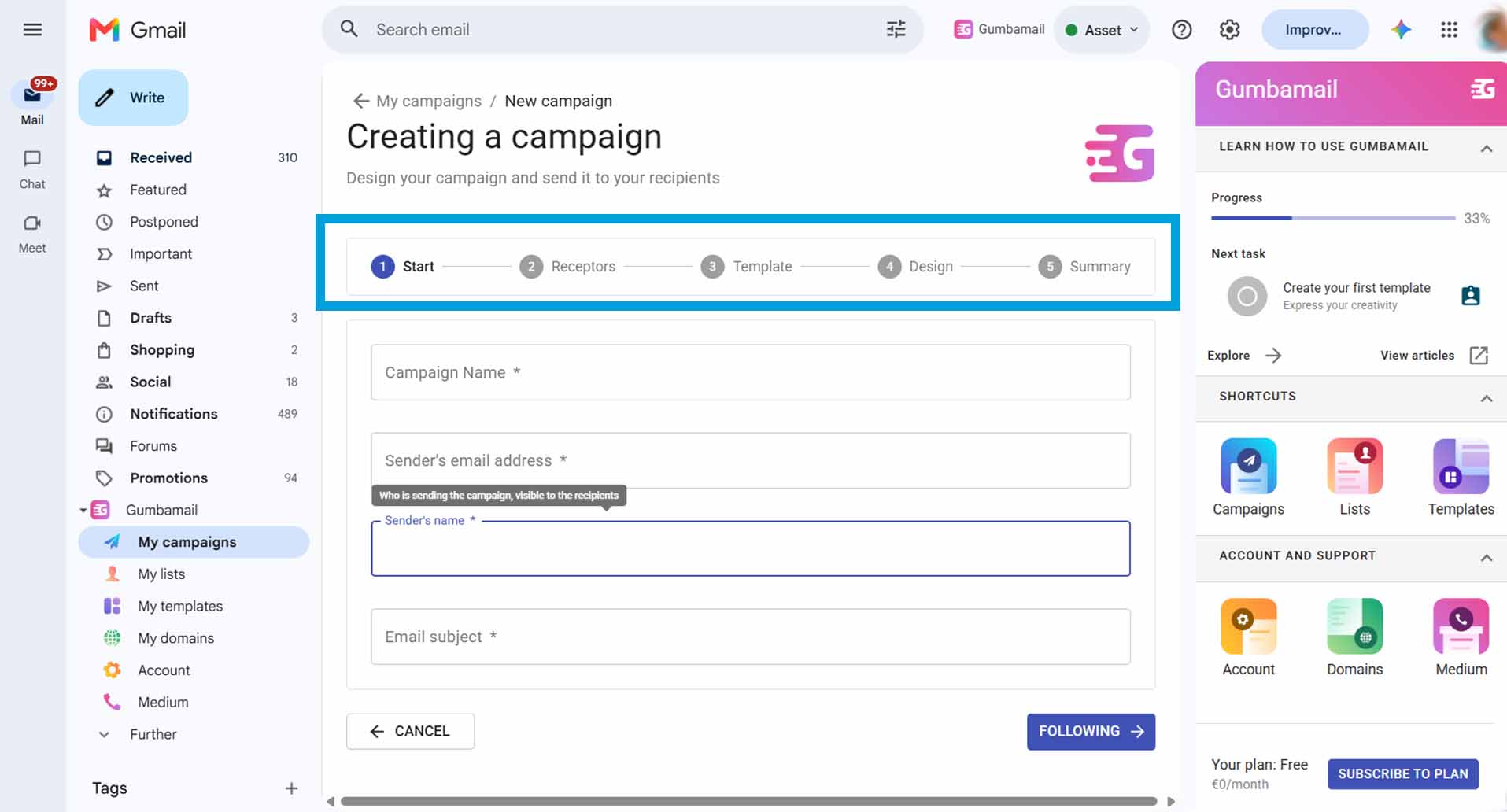
The following steps will be for configuring the campaign itself.
It consists of 5 steps:
- Start: configuration of the campaign name, sender name and email, and subject
- Recipients: choose the list you want to send the campaign to
- Template: choose a predefined design or your own (we will see it below)
- Design: write the content and layout the blocks that make up the email
- Summary: check that everything is correct and schedule
If you use Acumbamail, it will be familiar to you as the interface is very similar.
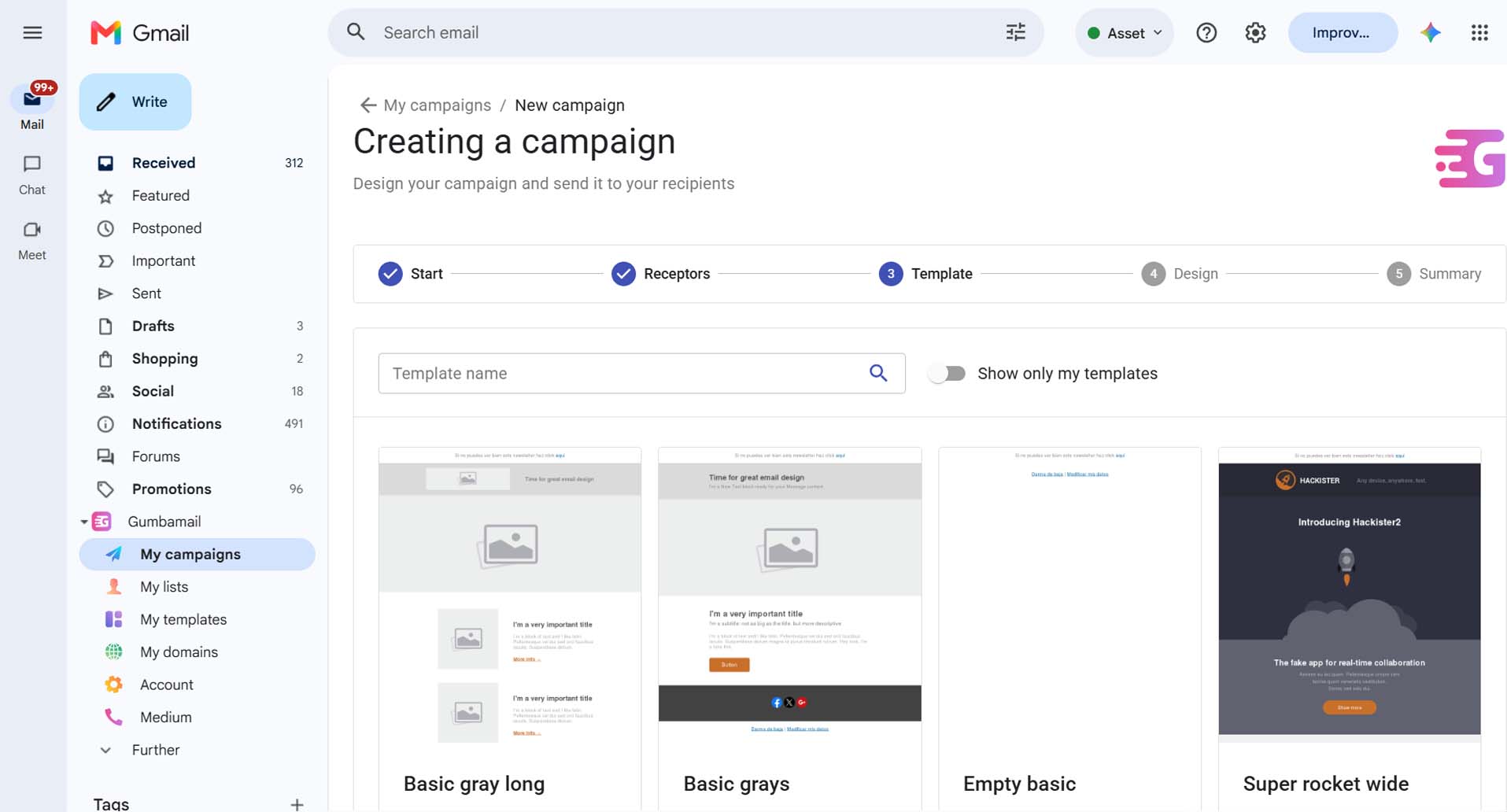
Choose a Template or Create One to Your Liking
The good thing about using Gumbamail is that you can access pre-designed templates to edit them and only have to complete the text and images you want.
However, you also have the option to start from scratch and add different blocks of text, images, dividers… to design it to your liking.
Once you have created the content of your email campaign, it is time to review that everything is correct in the “Summary” section.
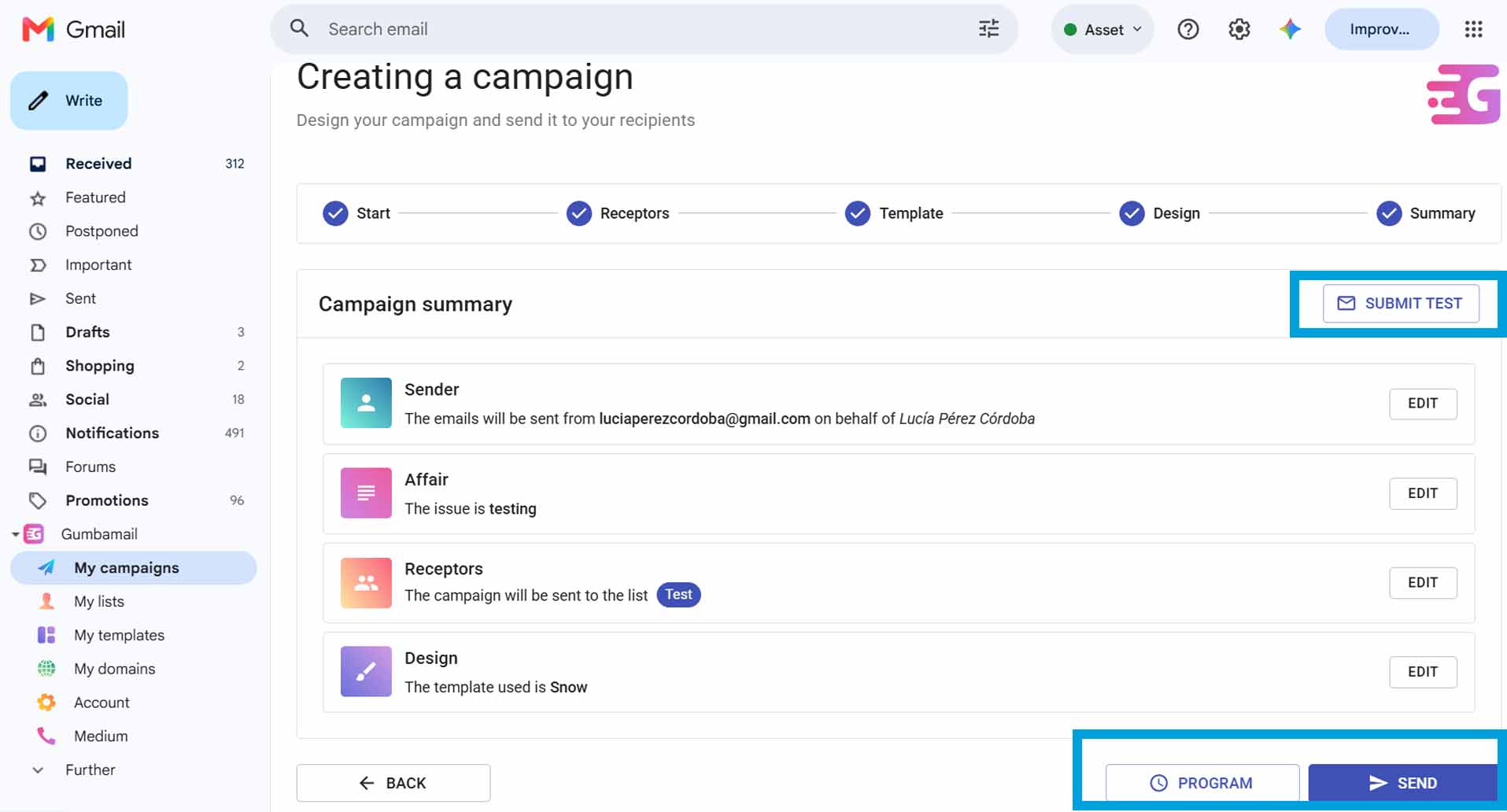
A good practice is to send yourself a test to verify that everything looks correct, there are no spelling mistakes, and the links direct to the desired landing pages.
If everything is okay, you can schedule it for a specific day and time or send it directly.
Step 5: Review the Metrics
When you have sent the mass email from Gumbamail, you will be able to see the reports of your campaigns.
Among other metrics, you can analyze the following:
- Opens / Open rate
- Clicks on links
- Emails delivered
- Soft bounces and hard bounces
- From which ISP or email clients they open
- Opens by devices, countries, and browsers
- Evolution of opens over time
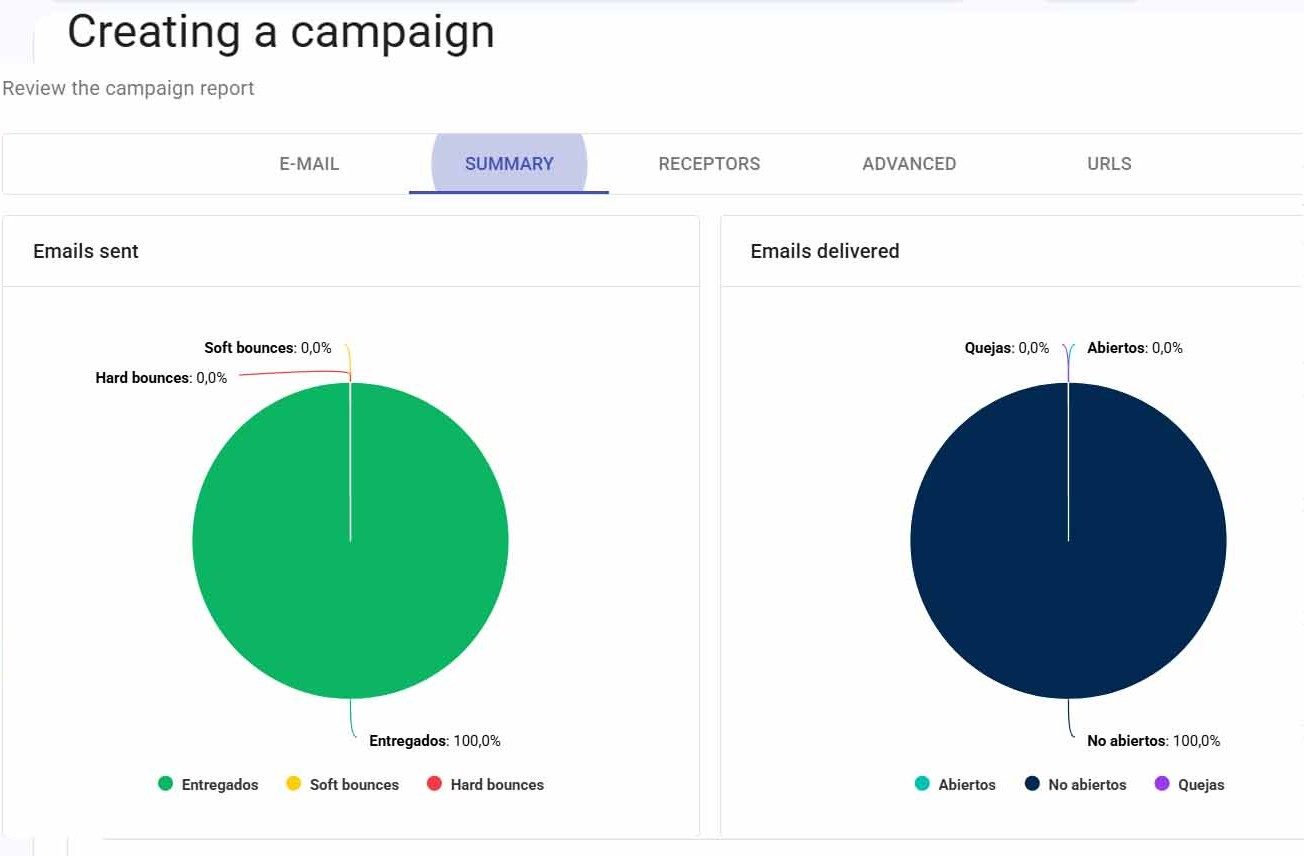
Look at the amount of information you can obtain by sending a mass campaign through Gmail thanks to Gumbamail.
After this review, you might be wondering…
Is Sending Mass Email Campaigns from Gumbamail Free?
Yes and no.
Let me explain.
When you activate the account, you directly access the free plan that allows you to send 250 emails per month with a maximum of 100 emails per day.
If you need to send more, it is advisable to switch to a paid plan. You can check them here.
However, it is quite economical. To give you an idea, for €8 per month, you can send 50,000 emails.
In Summary: Mass Emails Through Gmail
As you have seen, you can send mass emails through Gmail thanks to the use of extensions dedicated to this.
The great advantage is that it allows you to overcome the inconveniences you would have if you do it directly using your @gmail account. A practice I do not recommend as it will be a waste of time, and most importantly, your emails will end up in spam.
Before finishing, I would like to remind you that these extensions are good for occasional cases where you need to send mass emails through Gmail. But if your business requires sending campaigns frequently and you want to increase your income through email marketing, it is best to opt for a dedicated tool like Acumbamail.