Schema Markup for Gmail: How to Make Your Emails Stand Out Before They’re Opened
 Lucía Pérez · 22 Apr, 2026 · Email marketing avanzado · 7 min

You receive a flight confirmation in Gmail. Without opening the email, you already see the destination, departure time, and a button to check-in directly from the inbox. Or you book a table at a restaurant, and the details with the address and reservation time appear visible.
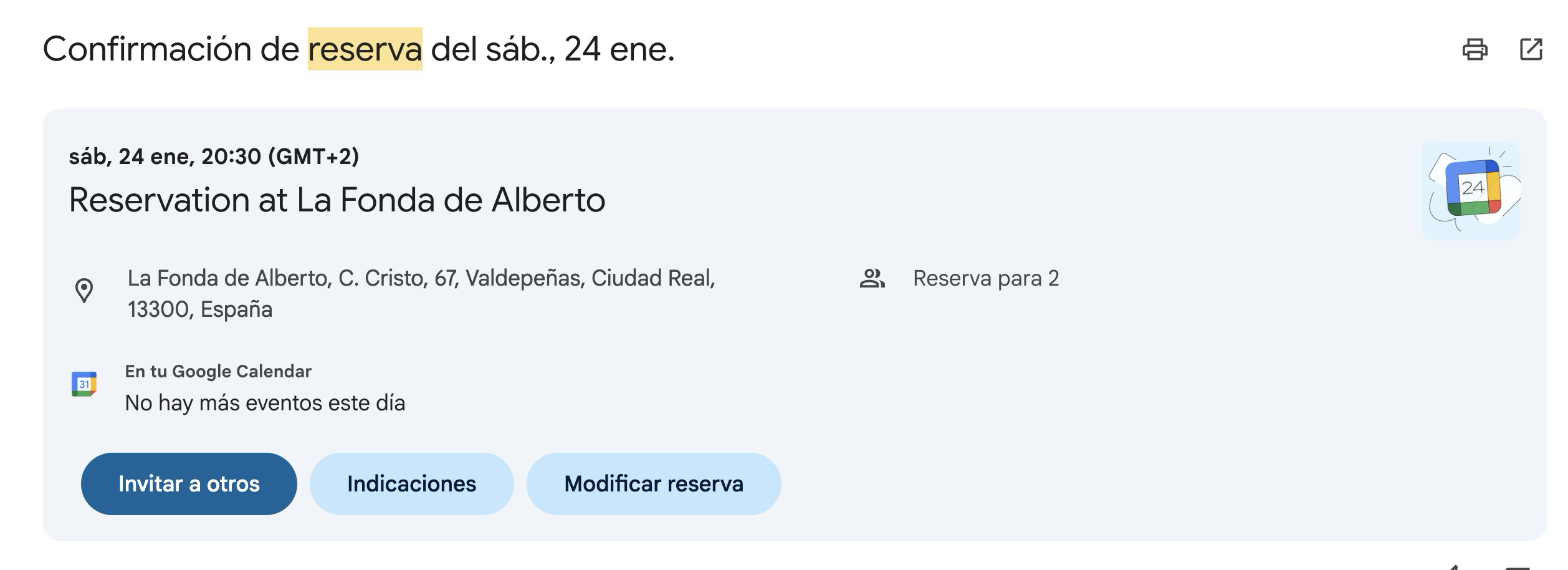
It’s no coincidence. There’s technology behind it. And it has a name: schema markup.
The question you might be asking is: could I do something similar with my emails?
Of course! And in this article, you’re going to discover how to do it.
What is schema markup for email?
Schema.org is a collaborative project that was launched in 2011 driven by Google, Microsoft, Yahoo, and Yandex.
Its goal was to create a common vocabulary of structured data for the web: a set of tags added to a webpage’s HTML code to tell search engines what type of content it contains. Whether it’s a recipe, an event, an offer, a review, or an opinion article.
In the context of email, the idea is exactly the same. A snippet of code (in JSON-LD format, which is the most common) is added within the email’s HTML.
That code does not change the visual appearance of the email. The subscriber doesn’t see anything different. But it tells Gmail what type of information it contains: an order, a reservation, a promotion, an action the user can take…
How does Gmail use schema markup?
When Gmail receives an email with schema markup, its algorithms read the structured code and extract the relevant information.
If it detects an order confirmation, it can display the order number and a button to track it. If it’s a promotion with an expiration date, it can show that date directly in the promotions tab.
We’ll see some examples below.
The important thing is that all this happens before the user opens the message. Gmail acts as an intelligent intermediary: it interprets the email’s content and decides what to display in the inbox preview.
Think of it like an airport panel. You don’t need to approach the counter to know if your flight is on time. The relevant information is already visible where you need it, when you need it.
Types of schema markup for email and what each is for
Not all schema markups do the same thing. There are four main uses, each with different applications depending on the type of email and the campaign’s goal.
Highlights (featured information)
It’s the most common type and the most visible in the inbox. Gmail extracts structured information from the email and displays it at the top of the email.
The clearest example is reservations: confirmation number, date and time, hotel or restaurant address.
But it also works for ecommerce: order number, shipping status, estimated delivery date…
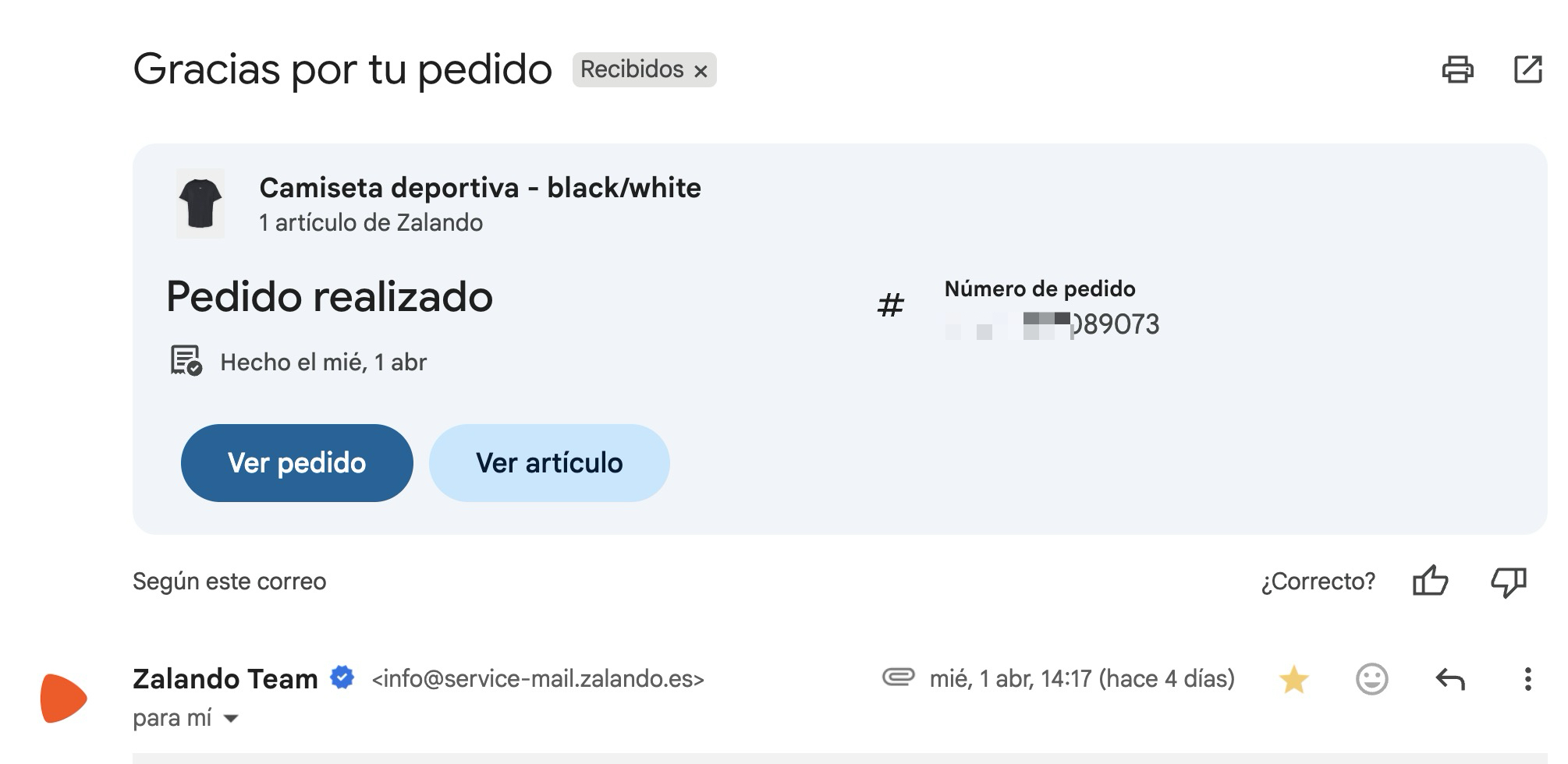
The user doesn’t have to search for anything. They see it as soon as they open the email.
Go-to actions (CTA in the subject)
With this type of markup, the email includes a visible button in the inbox that takes the user to a specific URL, without needing to open the message.
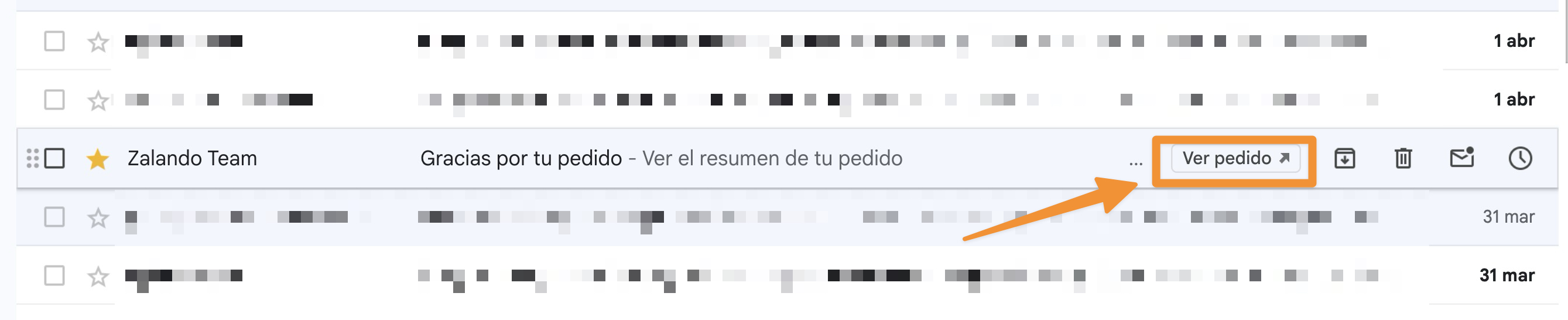
The most common use cases: track an order, access the cart, view an offer on the web, or complete a form.
For an online store, it can mean taking the customer directly to their shipment tracking page with a single click from the inbox. No friction. No intermediate steps.
One-click actions (action without leaving Gmail)
Unlike go-to actions, here the user doesn’t leave their inbox. The action is executed with a click from the email list view, without opening the message or visiting any website.
The most frequent uses: confirm attendance at an event, approve a request, save a discount code, add something to a list, or even check-in for a flight as shown in the image.
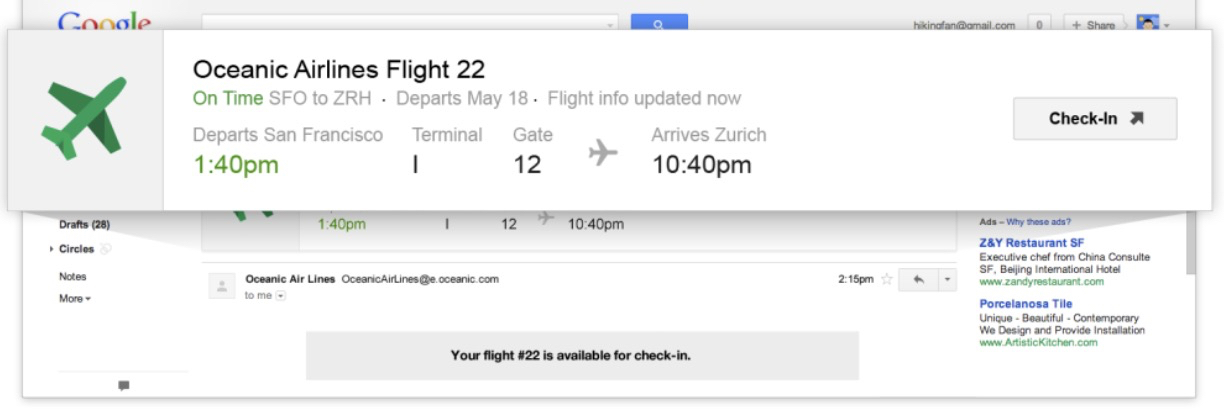
It’s especially useful when friction is the biggest enemy of conversion. The fewer steps the user has to take, the more likely they are to act.
Promotion tab annotations
Many marketers see Gmail’s promotions tab as a place where emails go to die. With schema markup annotations, that perception changes.
It’s possible to display a product image, the expiration date of an offer, and the discount code directly in the preview, before the user opens anything.
Promotional emails stop competing only with text and start competing visually as well.
Why is it worth implementing?
According to Google, some brands have recorded increases of over 30% in their email engagement after implementing schema markup. The reason is logical: when the user can see relevant information or perform an action without opening the message, friction disappears, and the likelihood of interaction rises.
But there’s a second equally relevant argument. Very few brands are using it yet.
The technical entry curve and the requirement for prior approval by Google make most dismiss it before trying. That means those who implement it now have a real visibility advantage in the inbox over competitors still sending conventional emails.
More engagement and less competition in adoption. It’s rare to have both at the same time.
How to implement schema markup in your emails?
The process has five steps. You don’t need to know how to program to understand them, although you will need technical support for some of them.
Step 1: check if the use makes sense
Before starting, it’s worth asking if schema markup really adds value in your specific case.
Gmail only displays this type of markup in emails that include clear actions or structured information: order confirmations, reservations, events, or emails with actions like confirming attendance, canceling, or reviewing a product.
If your email is a content newsletter, the impact will be limited or directly nonexistent.
This step prevents implementing something that won’t be displayed in the inbox.
Step 2: ensure you meet Google’s requirements
To use schema markup in Gmail it’s not enough to add code to the email. Google must approve the sender first.
Before requesting access, make sure you meet these conditions:
- Properly configured SPF, DKIM, and DMARC
- Maintain a good sending reputation without high spam complaints
- Send from a consistent address and domain
- Have some sending history (new domains don’t pass the filter)
Once this is met, the registration process has two steps:
- Send a real email from your sending address to schema.whitelisting+sample@gmail.com
- Fill out the official application form in the Google Developers documentation. The review process can take several days, so it’s advisable to start it in advance.
Step 3: prepare the email HTML with the JSON-LD code
Once access is approved, you need to add the structured code block within the email’s HTML. You don’t have to write it from scratch: Google Developers documentation includes templates and examples for each type of markup. The important thing is that the code is inserted correctly.
From this link you have a helper to implement it in your code.
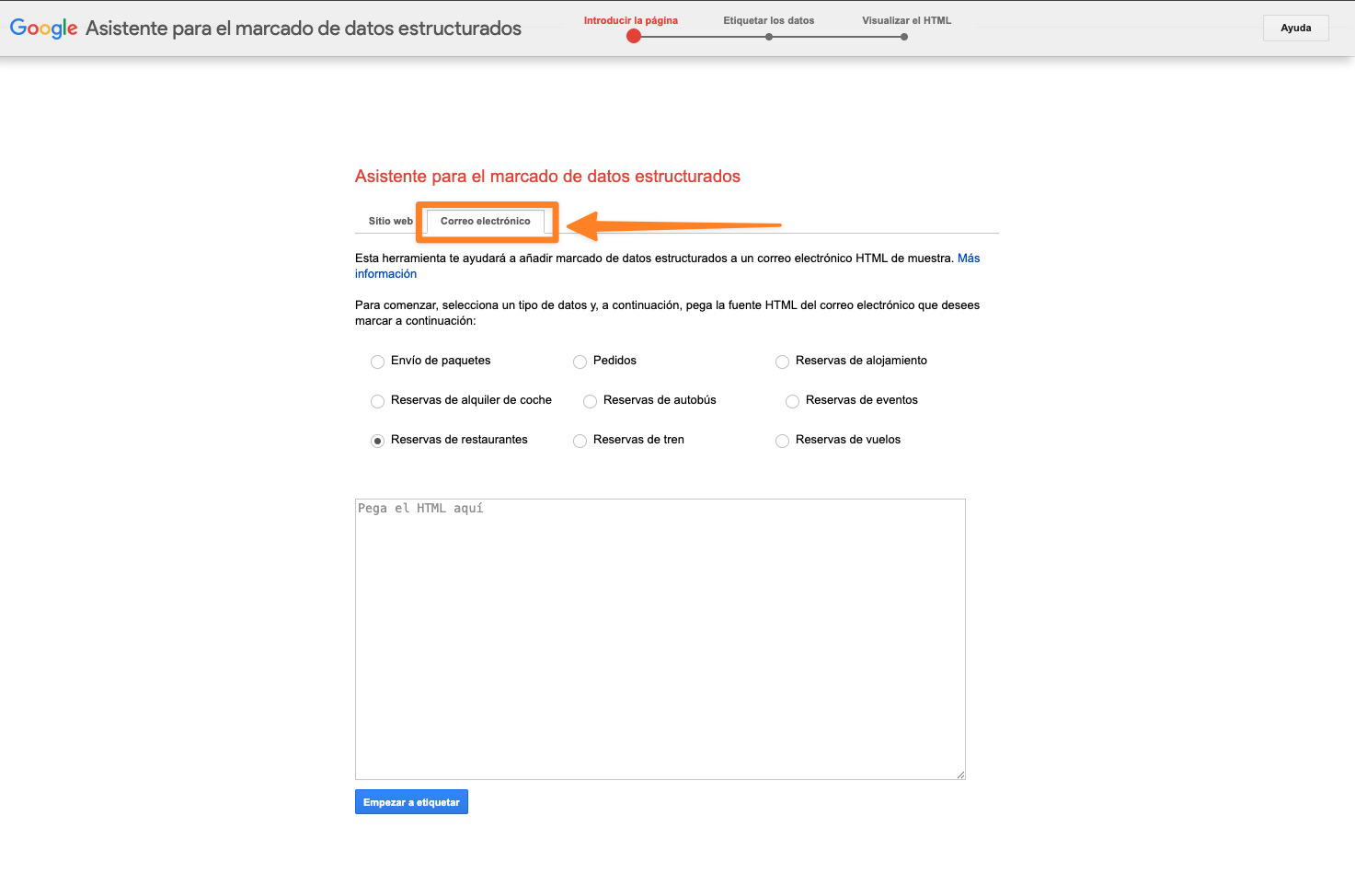
This is where a tool like Acumbamail makes the job easier.
If you already have a template in use, you can insert the schema markup code directly from the HTML block of the editor, without having to rebuild the email from scratch.
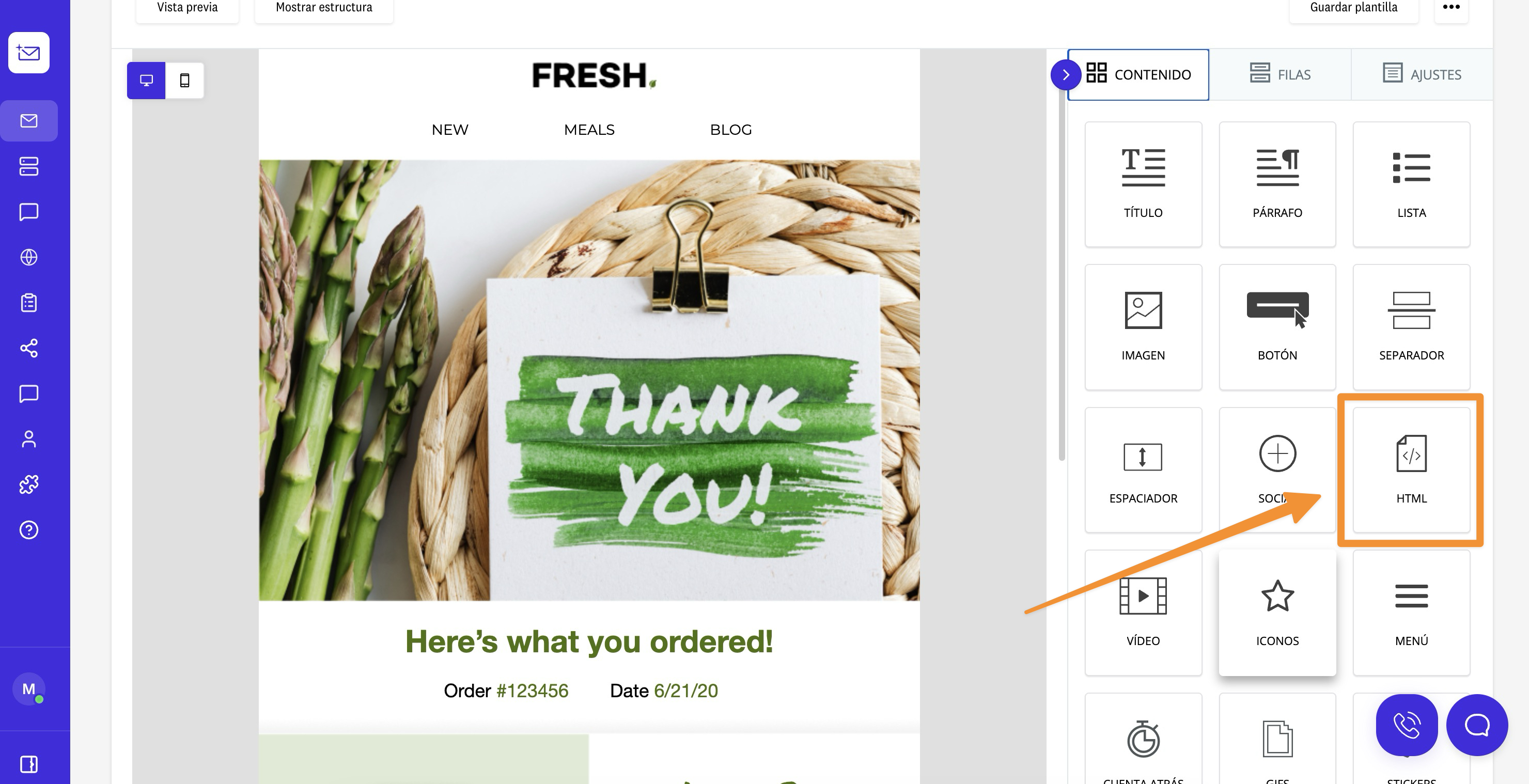
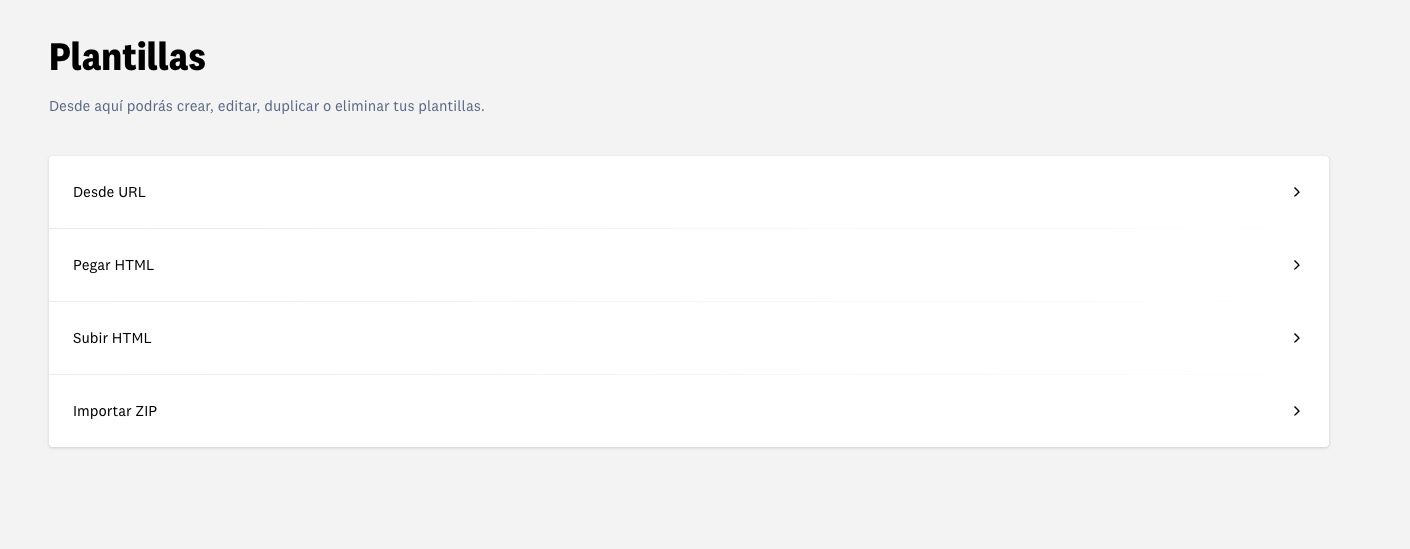
And if you prefer to work with your own template, Acumbamail also allows importing complete HTML, either from a URL or by uploading a ZIP file.
Step 4: validate the markup before sending
Before launching the campaign, validate the code with the Schema Markup Validator. This free tool checks that the structure is correct and that there are no syntax errors.
However, there’s an important limitation to be aware of: that the code is valid does not guarantee that Gmail will display it.
Validation confirms the structure but not the final behavior in the inbox. Therefore, whenever possible, send test emails to Gmail accounts and verify the real result before sending to the entire list.
Step 5: send and analyze the impact
Once validated, the email is ready. Analyzing the impact is not straightforward, as Gmail does not offer specific metrics on the use of schema markup. You won’t know exactly how many users interacted with the markup.
The evaluation is done indirectly: by observing changes in CTR, interactions with the actions included in the email, and comparisons with similar campaigns without schema markup.
These data will tell you if it makes sense to apply the markup to more types of emails within your strategy.
The main limitation you should keep in mind
Schema markup for email has a clear limitation: it only works in Gmail.
Outlook, Apple Mail, Yahoo Mail, and other email clients do not support it. If a subscriber opens your email in any other client, they won’t see anything different from the rest of your campaigns.
That said, there’s an important context. Gmail surpasses 1.8 billion active users worldwide, and in most sectors, it is the dominant email client among consumers and professionals. Before dismissing implementation, it’s worth checking what percentage of your list uses Gmail.
Moreover, Schema.org is a joint initiative of Google, Microsoft, Yahoo, and Yandex. It’s not far-fetched that other email clients may adopt it in the future.
In summary: the inbox is also a showcase
Most efforts in email marketing focus on getting the email opened. Schema markup poses a different question: what can your email do before someone opens it?
It’s not a solution for all cases or all businesses. But for those sending order confirmations, promotional emails, or event invitations, ignoring it is leaving an advantage on the table.
If you want to start working at this level of detail in your campaigns, Acumbamail gives you the control over your email HTML that you need to implement it.