Email services
Tell it what your campaign is about and the assistant prepares a draft ready to adjust in the editor, including its subject.
And if you already work with an AI assistant like Claude, connect it to your Acumbamail account via MCP and ask for what you need in natural language.
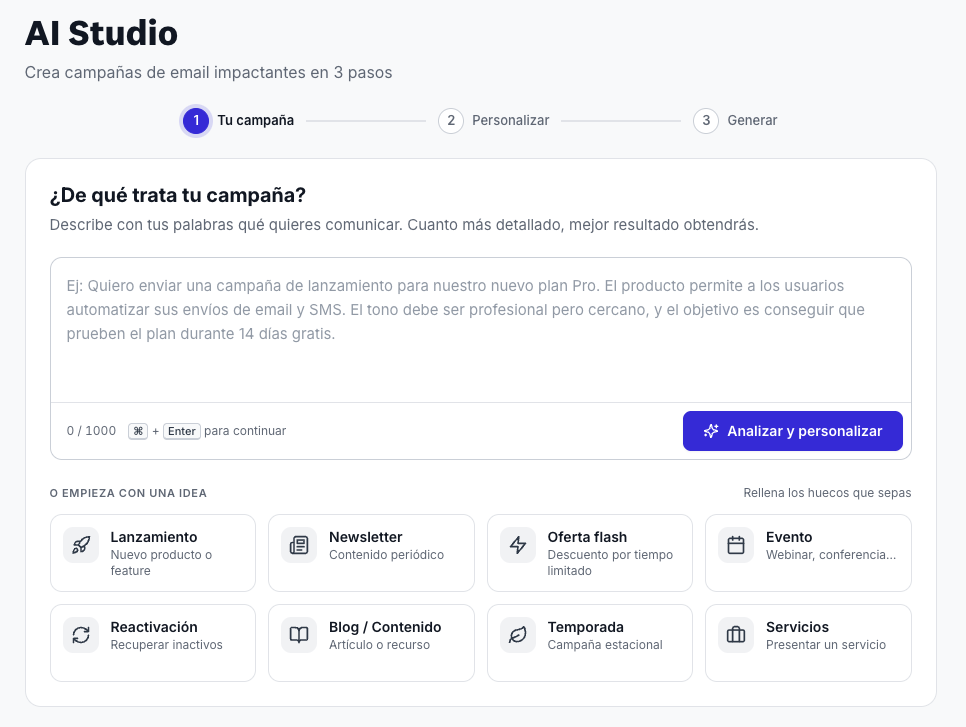
AI Studio guides you from start to finish. You decide; the AI does the heavy lifting.
1
Explain in your own words what you want to communicate. You can also start from an idea: launch, newsletter, flash offer, event, reactivation, blog, season, or services.
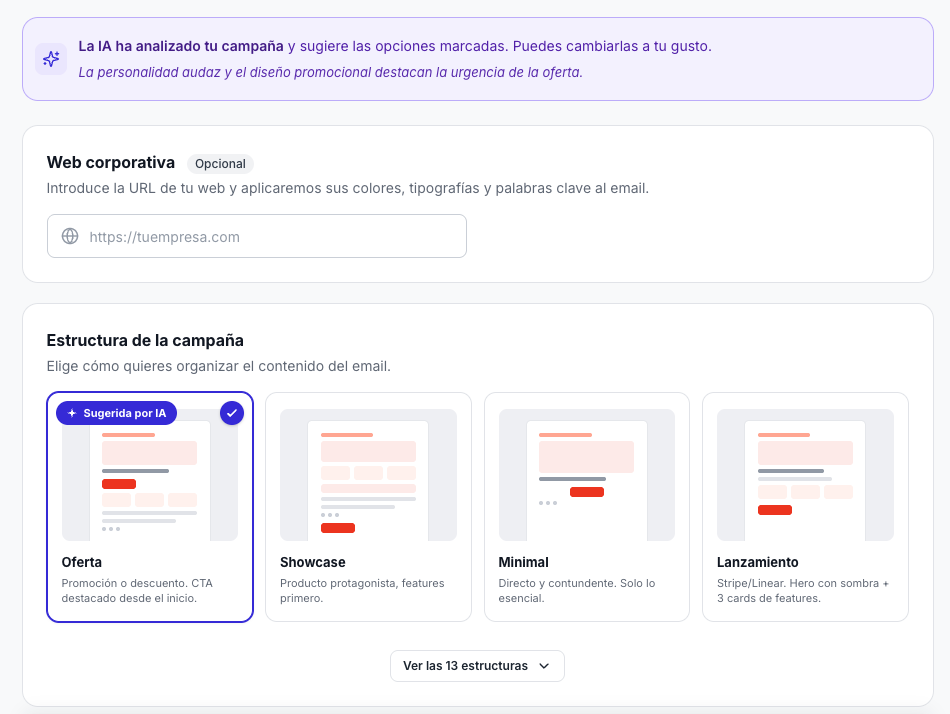
2
The AI analyzes your text and suggests a structure for the email. You can change it to your liking and, if you want, indicate the URL of your website to apply its colors, fonts, and keywords.
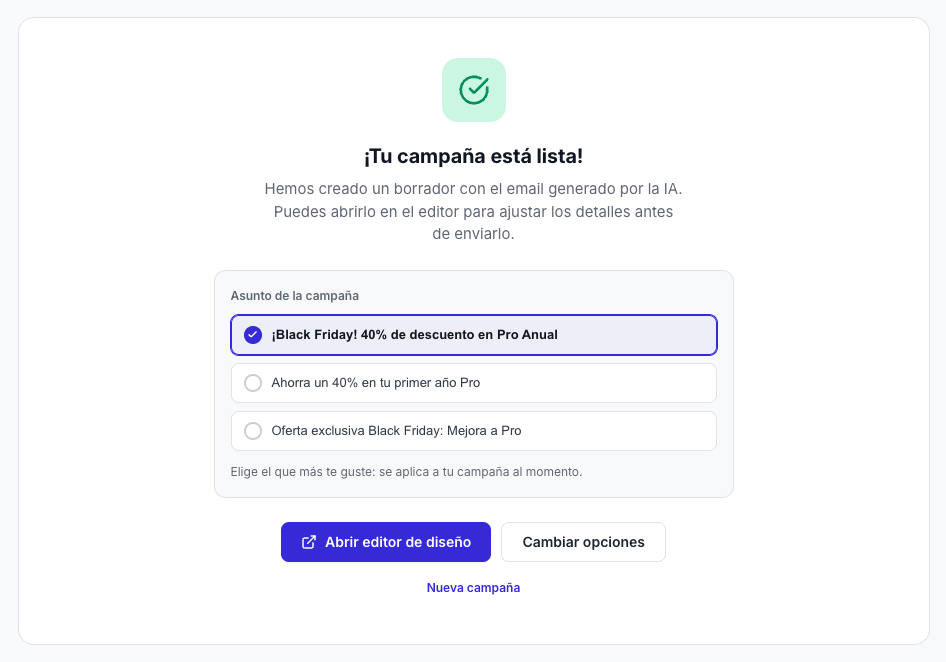
3
You get a draft with the generated email and several subject proposals to choose from. Open it in the design editor to adjust the details before sending.
Get to know the email template editor · Write texts with AI in the editor
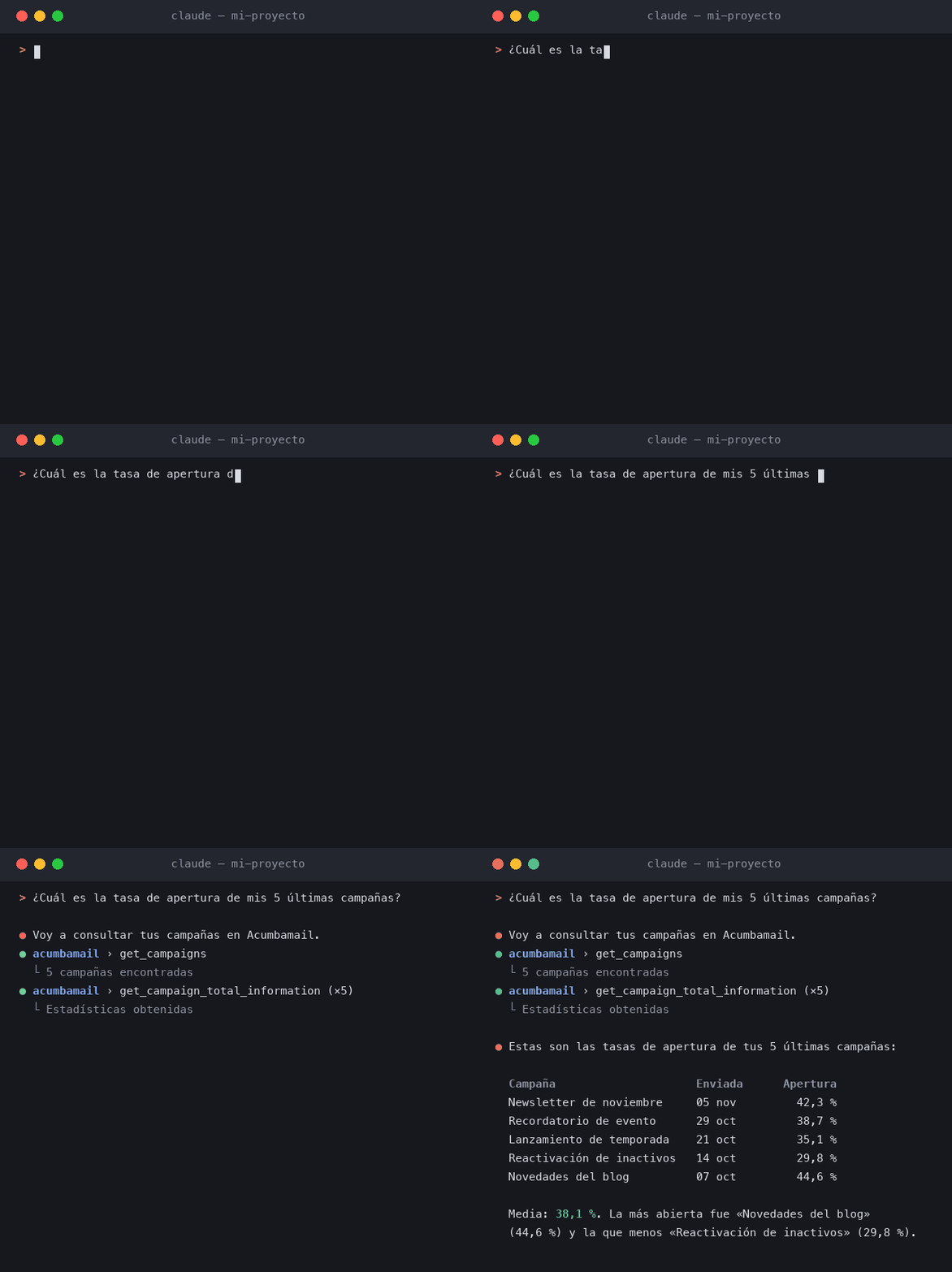
Acumbamail offers an MCP server (Model Context Protocol). With it, a compatible AI assistant, such as Claude Desktop, Claude Code, or Cursor, can query and operate your account in natural language.
Ask about your campaigns, lists, subscribers, templates, and statistics: opens, clicks, and bounces, by ISP, country, or device.
With write permission, ask it to create lists, add or unsubscribe subscribers, create and duplicate templates, create campaigns, and manage webhooks.
Sending or deletion actions always require confirmation. The assistant only sees and operates the data from your account, and you can revoke access whenever you want.
https://acumbamail.com/mcpTry asking it:
MCP stands for Model Context Protocol, a standard that allows an AI assistant to connect to an application to query and operate its data.
Acumbamail offers an MCP server: with it, a compatible AI assistant can query and operate your account in natural language. You just need to add the server address in your client, authorize access once from the browser, and ask for what you need.
The MCP server is available for any customer with a paid Acumbamail plan.
The AI assistant for creating campaigns (AI Studio) is only available on Pro and Enterprise plans. Check our pricing plans.
Any AI client compatible with MCP, such as Claude Desktop, Claude Code, or Cursor. The way to add the server depends on each client: check its documentation on how to add a remote MCP server by URL.
No. Authorization is done from the browser the first time you connect, and it renews automatically, so you don't have to repeat the process each time.
If you use Claude, when adding the connector choose "Register automatically" in the "OAuth client" section and leave "Sign in now" checked. The default option is not compatible with the server.
With read permission, query campaigns, lists, subscribers, templates, and statistics, including opens, clicks, and bounces broken down by ISP, country, or device.
With read and write permission, also create lists, add or unsubscribe subscribers, create and duplicate templates, create campaigns, and manage webhooks.
Access is tied to your account: the assistant only sees and operates your data, and the connection uses HTTPS. Your client requests a level of permission and you approve or reject it on the Acumbamail screen.
Sending or deletion actions always require confirmation, even with write permission.
You can revoke access whenever you want from Account → Connected Access → OAuth. After revoking it, the client will not be able to operate until you authorize it again.
AI Studio is the assistant you find within Acumbamail to create a campaign in 3 steps. The MCP server allows you to use your own AI assistant, outside of Acumbamail, to query and operate your account.
AI Studio is available on Pro and Enterprise plans; the MCP server is available on any paid plan.
The server respects the usage limits of the Acumbamail API. If you send many requests in a row, the assistant may show a notice to wait a few seconds and the client automatically retries.
The AI assistant is available on Pro and Enterprise plans.


Need some help? Llámanos al 91 198 84 05